Restoring Recently Changed Information
You can view added or updated entries in the Time Sheet Audit Report form by selecting Audit on the Actions menu in the Time Sheet Entry form. For example:
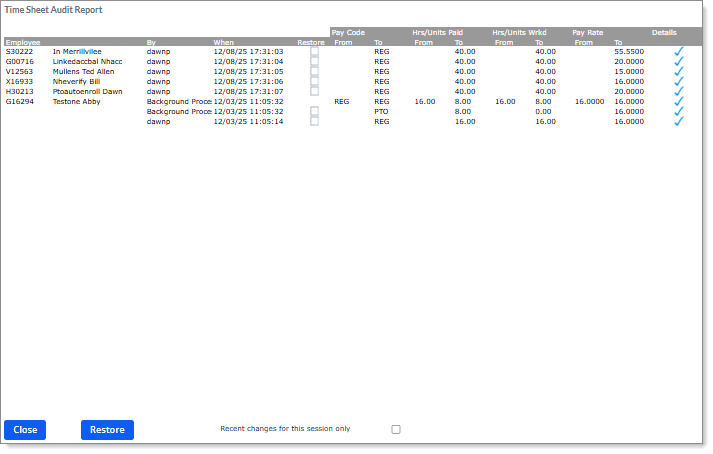
Note: The system defaults to displaying only the current session. Disable Recent changes for this session only to display the entire audit log, including any changes due to imports.
The Time Sheet Audit Report displays the following information:
|
•
|
The user and hours entered in the timesheet. |
|
•
|
Auto-accept leave displays as made by the "Background Process" user. |
|
•
|
The By column displays the user ID who made the change. |
Restoring Recent Changes
You can use the Time Sheet Audit Report form to restore recent updates to their original state.
To restore information to its original state:
|
1.
|
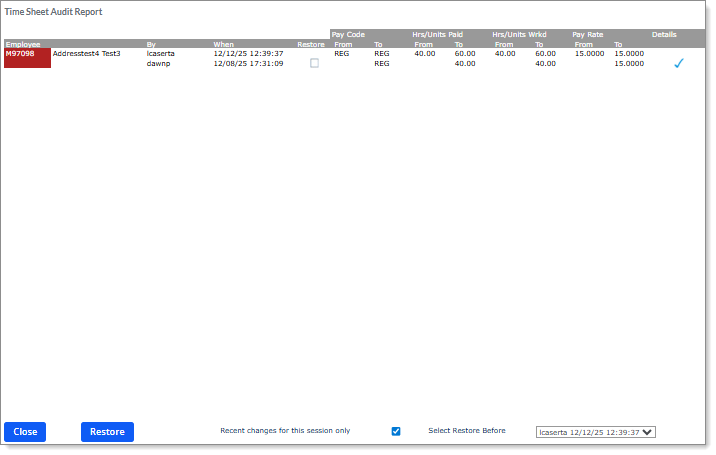
To view only recent changes, enable Recent changes for this session only. The recent changes display. For example: |
|
2.
|
View a specific change date by selecting it from the Select Restore Before field. |
|
3.
|
Select the change to restore by clicking the checkbox in the Restore column. |
|
4.
|
Click Restore. A message displays, "This will restore the checked items. Are you sure you wish to continue?" Select Yes to restore this change. |
 icon in