 icon in
 Creating and Editing Import Mappings
Use this form to create or edit import mappings and map codes from your spreadsheet to PrismHR codes.
To access this form:
From the Batch Management form, click Import Field Mapping (under Import Format Management). Or, from the Back Office menu, navigate to Operations|Action and click Import Field Mapping.
Autodetect From File
File auto-detection provides a way to upload a sample file in the desired format (.csv or .txt) so PrismHR software can automatically detect how the file is set up.
Note: PrismHR recommends uploading a file and letting the auto-detect function assist with mapping.
When you upload the file, the system attempts to match up the incoming field names with PrismHR fields or pre-defined alternative field descriptions. This auto detection occurs during file upload and the system displays a process window that details the upload progress. Parameter values in File Settings are automatically selected based on the contents of the uploaded file. You can adjust these parameters and apply changes.
The system flags these errors:
| • | Duplicate column headers: You must change the duplicate header name and save changes. |
| • | No column headers: You must update column headers with names. |
Once the file is uploaded and interpreted by the system, Column Mapping is updated to reflect how incoming field names match up with PrismHR fields. You can edit Imported Column Header and Prism Field to refine the field mapping.
File Settings
Auto-detect parameters become active after a file is upload and includes these options:
| • | Number of header lines to skip : This value controls how many rows in an uploaded spreadsheet are skipped before parsing it for values. Values range from 1-10, with a default of 1. |
| • | Delimiter: Available options are comma (default) and tab-delimited. |
Import Field Mapping Section
The Import Field Mapping section configures your settings to import field mappings into the system.
To set up the import field mapping:
| 1. | Select a Type. Currently, the only available option is Employee; this field will be expanded to other types of imports in the future. |
| 2. | Select a Field Mapping ID (required) from the Select Field Mapping look-up table. Field mappings have been created that align with import spreadsheets: |
| • | Prism-Standard |
| • | Prism-Expanded (default) |
| • | HRP-Expanded |
These are based on the Expanded and Standard HRP import formats. They vary slightly from the originals in that they do not include blank or discontinued columns. The standard field mappings include PAY.GROUP, AUTO.PAY, and I9.FROM.OB in addition to the fields found in the HRP version of the import.
Note: Only spreadsheets that match the HRP-Expanded-TXT file can be imported without headers.
| 3. | Enter a known field mapping ID or description in the Search Box. You can also filter results by status (All, Active, Obsolete). |
| 4. | Select an item from the results that display. The Import Field Mapping form displays with populated fields. For example: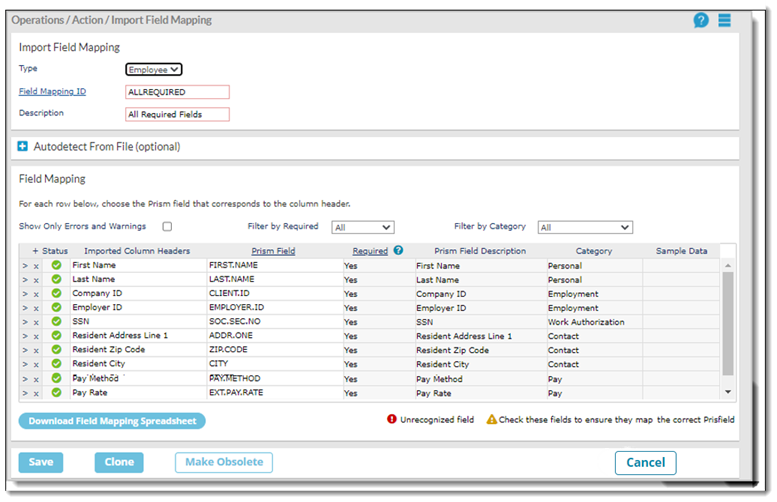 |
| Field/Control/Button | Description |
|---|---|
| Show Only Errors and Warnings | Filters the status column so only errors and warnings are displayed. |
| Filter By Required | Filters the fields by their Required status. Options are: All, Yes, No, Conditional. Conditional fields are optional entries, such as Gender or Personal Email. |
| Filter By Category | Filters the field mappings by Category. Options are: All, Personal, Employment, Contact, Work Authorization, Pay, Tax, Benefits, Custom, I-9, Pay Allocations, HR. |
| Status | A green check mark indicates that a field match was found with the system. A red exclamation point indicates that the field was not recognized. A gold triangle means the autodetect function was not able to match the field with 100% accuracy and you need to check these fields to ensure they map to the correct PrismHR field. |
| Imported Column Headers | The headers (field names) in the import spreadsheet that are being mapped to the equivalent PrismHR fields. |
| Prism Field | You can enter PrismHR field codes manually, or click Prism Field to open the Select Field selector. This information should be checked against the list of existing PrismHR fields. After a field is validated, a Required? column is filled with Yes, No, or Conditional, which depends on Prism's standard requirement for a field. These labels are conditional, which indicates they are required under certain conditions: GENDER, HOME.STATE STATUS, EMAIL.ADDRESS, and AUTO.PAY.HOURS. If an added field is already in use, the system instructs you to remove the existing field if you want to associate it with a different column. If there is no matching Prism field against what is entered, the system says that no matching field is found. Blank cells with a value in the corresponding cell are validated when saving. The system warns there are one or more fields with no values in corresponding fields and to review and fix these errors before attempting to save again. |
| Required | Indicates whether a field is required (Yes) or not (No). Global and Client field overrides are not displayed. |
| Prism Field Description | Friendly text description of the PrismHR field. For example, the code Client ID translates to Company ID. |
| Category | Field category, such as Personal, Employment, Contact, and so on. |
| Sample Data | Displays a sample from the imported spreadsheet to assist in confirming the correct matching of fields. For example, First Name will display an employee name, such as John. |
| Download Field Mapping Spreadsheet |
Download an imported spreadsheet in a format that can be either TXT or CSV, depending on the file used to create the mapping via auto-detect. If a field mapping is created manually (not using auto-detect), the download file will be CSV. |
| Save | You can save a new field mapping or save changes to a field mapping. The system flags any missing required fields, or it verifies that the definition was saved successfully. |
| Clone | You can clone (copy) a field mapping, and then give the cloned field mapping a new ID and description (both fields are required). The system warns you if the ID already exists. If you make changes to a mapping before clicking Clone, the system asks whether you want to include any unsaved changes. |
| Make Obsolete | Click to make a field mapping obsolete. The system asks you to confirm that you want to perform this action. If you click Yes, the fields become read-only and the Make Obsolete button changes to Reactivate. If you click No, the system returns to the Import Field Mapping form. If you try to make a mapping obsolete while imports are in progress, the system warns you and does not perform this action. |
|
Reactivate |
You can take an obsolete field mapping and reactivate it. The field mapping is then active and fields become editable once again |
| Cancel | Click to clear the form. |
|
Note: There is a PrismHR default field mapping that uses the current expanded employee import spreadsheet called HRP-Expanded-CSV. |
|
| 5. | Enter a Description (required). |
| 6. | Click Save. |
Editing Data in the Grid
When working with data in the grid:
| • | Click + to add a row at the bottom of the grid to add new field data. |
| • | Click > on any line in the grid to insert a row above that item. |
If you enter a value in Imported Column Header that matches a value in either UI LABEL, ORIGINAL EXP IMPORT CODE, or alternatives to the field name that the auto-detect routine recognizes, and then click or tab out of that cell, the system auto-fills the PrismHR Code field with the corresponding code.
Downloading a Spreadsheet
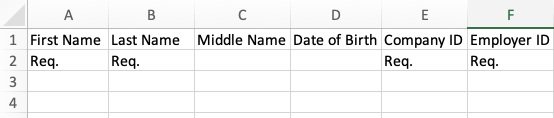
The Download Field Mapping Spreadsheet button displays below the Field Mapping table, which lets you download a spreadsheet based on the saved field mapping that the system automatically generates. The imported column headers display in the first row, and in the second row, if a field is required, 'Req.' displays below the column header. For example:
To download a spreadsheet:
| 1. | Set up your field mapping file as instructed in Import Field Mapping Section. |
| 2. | Click Download Field Mapping Spreadsheet and save to a local drive. |
