 icon in
 Using the Enhanced Dashboard
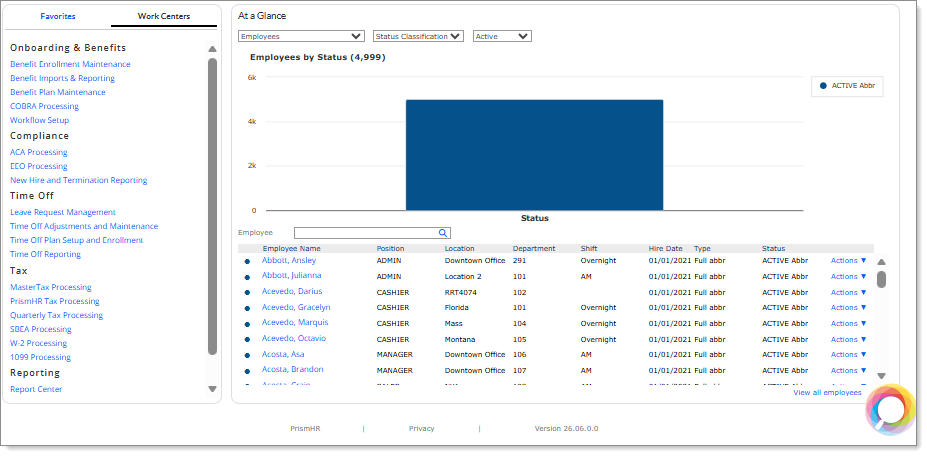
The Enhanced Dashboard provides quick access to company information, favorite forms, and work centers from a central location.
The Enhanced Dashboard includes the following helpful features:
| • | The employee filters are consolidated for easier use and have additional filters by Status to produce a targeted list of employees. |
| • | The Benefit Plans view displays plans offered at the client level, along with an Employee Benefit Enrollment dashboard to help you manage enrollments. |
| • | Service providers and worksite managers can use the Recent Payrolls option to view a list of recent payrolls, along with the files and reports associated with each payroll. |
To access the Enhanced Dashboard, click Client, select Client|Dashboard, and then select Enhanced Dashboard.
Note: Before you use the Enhanced Dashboard, you must enable the dashboard using the Global Configuration form (see Setting Global Configuration). In addition, the User Role assigned to the user must be granted access to the Enhanced Dashboard using the User Roles form (see Defining User Roles).
Working in the Dashboard
The Enhanced Dashboard is organized into the following tabs, panel, and data table.
|
Attribute |
Description |
||||||||||||||||||
|---|---|---|---|---|---|---|---|---|---|---|---|---|---|---|---|---|---|---|---|
|
Favorites tab |
Links to forms that have been added to the user's favorites display in this tab (see Designating Favorites). |
||||||||||||||||||
|
Work Centers tab |
Links to various Work Center forms display in this tab (see Work Centers). |
||||||||||||||||||
|
At a Glance panel |
This panel is used to review information about employees, benefits, payrolls, and onboardings. Select an option in the first drop-down to display information about the selection in the graph and/or data table. Some options allow for additional selections to be made using additional drop-downs or a search bar, which can be used to further customize the type of information that displays. The following options are available in the first drop-down:
Note: If the user navigates to another form, the last selection that was made in the first drop-down is retained when the Enhanced Dashboard is next accessed. |
Menu Bar
The menu bar near the top of the page provides access to menus and other features.
|
Feature |
Description |
|---|---|
|
|
Returns you immediately to the Dashboard. |
|
|
Opens the Work Centers menu. |
|
|
Opens the Client or My Company menu. |
|
|
Opens the HR or My Employees menu. |
|
|
Opens the Payroll or My Payrolls menu. |
|
|
Opens the Reports menu. |
|
|
Displays the list of forms designated as favorites. |
|
|
Opens the Back Office menu. |
|
|
Opens the PrismHR Marketing|Expanded Services web site, where you can connect with vendors. |
|
|
Search for forms, employees, and other items. |
|
|
Indicates whether you have messages. Click it to access the messages. |
|
|
Indicates whether you have pending approvals. Click to access the approvals. |
|
|
Click to change your password or sign out. |
|
|
Opens video help. |
|
|
Opens menu that displays associated forms. |
|
|
Opens WebHelp. |
|
|
Opens the Actions menu for a form. |




Header and Footer
The header is below the menu bar. It provides the following information:
| • | The path to the current page (breadcrumbs). |
| • | The name of the selected client. |
| • | The Help icon enables you to get online help. |
| • | The Actions menu lets you add or remove the current page as a favorite. |
The footer is at the bottom of the page.

It provides the following information:
| • | PrismHR launches the PrismHR website. |
| • | Privacy opens the PrismHR Privacy statement. |
| • | Version <number> provides access to current and past release notes, PDF, and Excel files, sorted by release/year. |
Note: Video help is available on many of these features. Click the video help icon at the top right of the form to watch the video.
