Managing Pending Payday Notifications
You can manage pending payday notifications using the Payday Notification Queue form, which is available on the Client|View menu. For example:
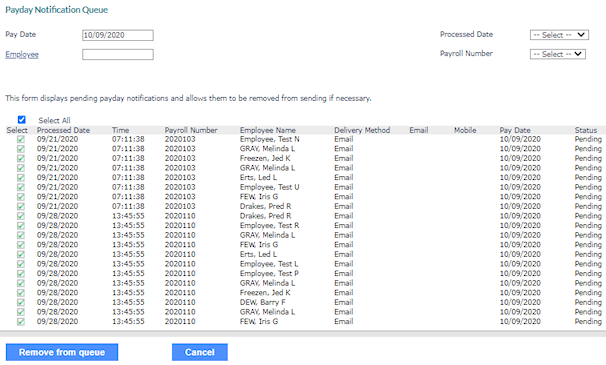
Note the following:
|
•
|
This form is only available for service providers. |
|
•
|
After payrolls are completed, payday notifications are scheduled for delivery but are not sent until the pay date. These pending notifications display in the Payday Notification Queue, so you can view and manage them. |
|
•
|
The queue displays all employees that have a pay date within the next seven days (default). |
|
•
|
You can adjust the pay date to include vouchers up to 30 days in the future. |
To manage pending payday notifications, do the following:
|
1.
|
Go to the Payday Notification Queue form and complete the following fields: |
| Pay Date |
Date the payroll is scheduled to process, which must be a future pay date within 30 days of the current date. (The date always defaults to seven days in the future after the form loads.)
Note: The system uses the Pay Date on the voucher to trigger the payday notification.
|
| Employee |
To view and manage a specific employee, do one of the following:
|
•
|
Enter the employee ID or name in the Employee field. |
|
•
|
Search for an employee by ID or name by selecting the Employee field. The Select Employee search dialog displays where you can enter the employee ID or name, which displays in the results list. You can click Reset Search and Filters to remove the search entry from the Employee ID or Name field. Selecting the desired employee from the results list displays it back in the Payday Notification Queue form. |
Note: This field is optional.
|
| Processed Date |
Select the date when the payroll was processed (optional). |
| Payroll Number |
Select the payroll number (optional). |
|
2.
|
The form loads all enabled payday notifications for the active client, if the employee has not opted out of their settings on EP. |
In addition, note the following:
|
•
|
Voided payrolls do not display. |
|
•
|
Only regularly scheduled batches display (the system excludes special and manual batches). |
|
•
|
If you update the delivery method, email address, or mobile number while the notification is still pending, the change immediately displays in the queue, and notifications are sent based on the updated information. |
|
•
|
The system triggers payday notifications only when payroll is completed and the employee is opted into the notification. |
|
3.
|
Select the checkbox for each pending payday notification you want to remove or click Select All to remove all displayed notifications. |
|
4.
|
Click Remove from queue. |
In addition, you can obtain a list of payment notification transmission statuses by running the Payday Notification Transmission Report. (See Generating Payday Notification Transmissions.)
Note: This report is only available for service providers.
