Setting Up Payroll Approval
Your organization can set up the system so that the client can see the invoice and approve the payroll before it is complete. You can set approvals for both the initialization and finalization steps of the process.
Setting Up a Client for Payroll Calculation Approvals
You do not need to define an approval policy to set the client to approve their payrolls.
To set up a client for payroll calculation approvals, do the following:
|
1.
|
Go to the Client Details form (found in the menu under Client|Change). |
|
2.
|
Select the Control tab. |
|
3.
|
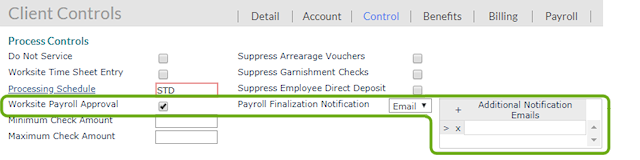
Select the Worksite Payroll Approval option to send an approval email after a payroll is calculated (initialized). |
|
4.
|
If appropriate, you can also specify that a Payroll Finalization Notification should be sent by email and, if so, who should receive those emails other than the payroll approver. This sends an email after the payroll is posted (finalized). |
Note: This is simply a notice that the payroll was posted. It is not related to any approval policies for payroll finalization that your organization has defined at either the system level or for the client.
Setting Up an Approval Policy for Payroll Posting
To set up an approval policy for payroll posting, do the following:
|
1.
|
You can set up approval policies for all clients or for the specific client. |
|
•
|
To set up a system-level policy, go to the Global Approval Policies form. ( Click Back Office. Select System|Change.) |
|
•
|
To set up a policy for the client, go to the Approval Policies form (found in the menu under HR|Change). Ensure that the correct client is selected. |
|
2.
|
If you are setting up a system-level policy, specify the Service Type. If you are setting up a client-level policy, continue to the next step. |
|
3.
|
From the Approval Type drop-down, select Payroll Finalization. |
|
4.
|
Define each of the users who need to approve the payroll when it is posted. (For example, you might specify the HR Role of Payroll Approver.) |
Setting Up a User as a Payroll Approver
To make a user the client’s payroll approver, do the following:
|
1.
|
Go to the Users form. (Click Back Office. Select System|Change.) |
|
2.
|
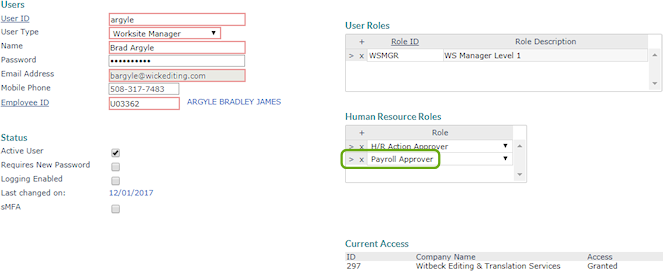
Enter the User ID of the user who will approve payrolls. |
If you are creating a new user account, enter the other information as needed. See Creating a New User for detailed instructions.
|
3.
|
In Human Resources Roles, select Payroll Approver. |
You should also make sure that the Active User option is selected, that the user has access to the client, and that the user role assigned to the user has full access to the approval forms.
After you complete this setup, when a payroll processor calculates and reviews the next payroll, the user will receive an email with the invoice details and a link to payroll approval in PrismHR.
Defining Custom Message Templates for Approvals
You can set up message templates to send for each kind of payroll approval for your organization to use instead of the system default. This allows you to customize the message.
To create a message template, do the following:
|
1.
|
Go to the Message Templates form. (Click Back Office. Select System|Change.) |
|
2.
|
Enter a unique Message ID for the template, for example, PAYCALCAPP. |
|
3.
|
Enter a Description of the template, for example, Payroll Calculation Approval. |
|
4.
|
Select the Content Type: TEXT or HTML. |
|
5.
|
Enter the Subject line for emails that use this template. |
|
6.
|
Enter the Body of the message. You can incorporate HTML in the body of the message if you select the HTML format. |
To use the template for approvals or finalization notices, do the following:
|
1.
|
Go to the System Parameters form. (Click Back Office. Select System|Change.) |
|
2.
|
Open the Actions menu and then select Email Services. |
|
3.
|
Click + to add a new row. |
|
4.
|
Select the appropriate email Template Type: |
|
•
|
Payroll Approval: The email to send for approvals after the payroll is calculated. |
|
•
|
Payroll Finalization: The email to send after the payroll is posted. |
|
5.
|
Click Save in Email Services. |
